In this tutorial, we’ll be using Inkscape to create a simple and very useful website background. Using transparent and repeating stripes, we can make an overlay that works with any color in the world.
The Final Result
1. Preparing Inkscape
Step 1
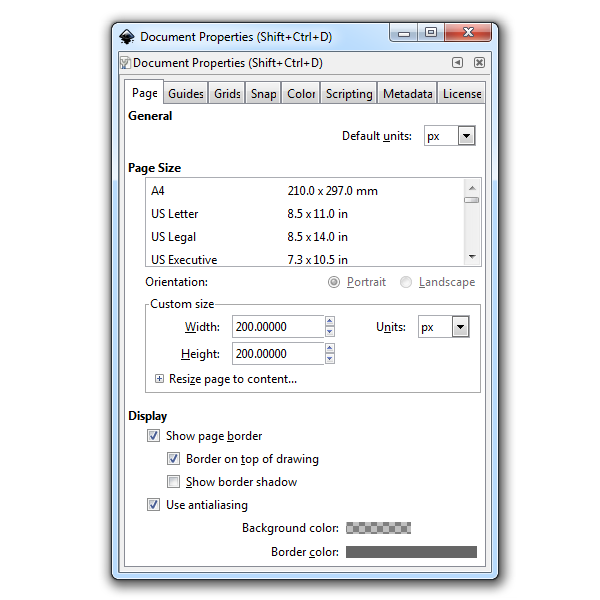
This repeatable background will be 200px by 200px, so let’s head up to File > Document Properties to get that started.
Step 2
Then select the Grids tabs and enable a grid with these settings.

Step 3
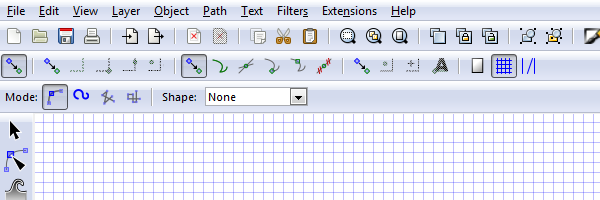
Before we start drawing, we also need to go to the Snapping toolbar and enable snapping, snap nodes/handles, and snap to grids (or just copy my settings below).
2. Draw Some Lines!
Step 1
We can now use the Pen tool to draw a diagonal section like I have below. Snapping should kick in and make this very easy.

Step 2
And continue as shown. Make sure everything is perfect so that the repeating pattern matches up.

Step 3
You get the idea.

Step 4
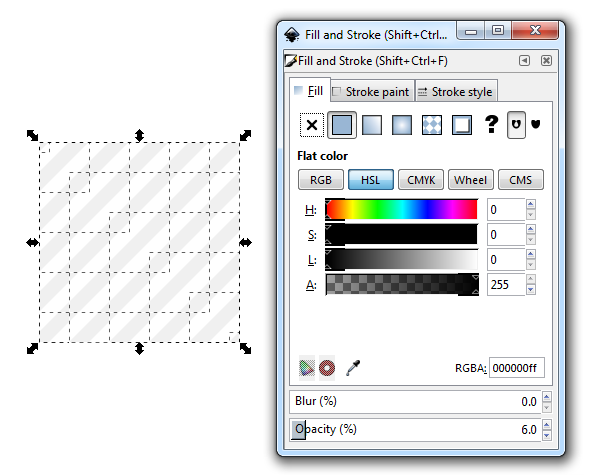
When you finish drawing all of your sections, go ahead and select them all and remove the Stroke, but add a black fill with 6.0 Opacity.
Step 5
You could be done at this point, but I’ve also added a smaller diagonal line with less Opacity to create a neat effect.

Step 6
Finally, we just export our background image and throw it into a webpage. Try toggling some colors below!
That’s It!
This dynamic, repeatable stripe background is very versatile and looks quite good with just about any color. If you’re interested, you can also create a dynamic static texture background in Inkscape. Thanks for reading!