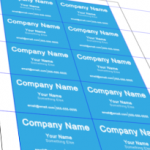
If you’ve been wondering how to design business cards in Inkscape, your best bet is to start with a business card template. Let’s go over a really easy way to create a business card template.
Download the Business Card Template Here
Step 1
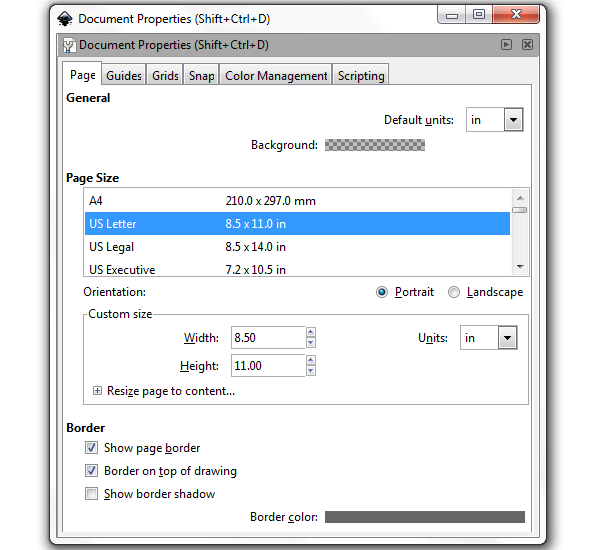
First, let’s head to File > Document Properties to get our document set up. Under General, change the Default units to inches, along with selecting US Letter from the Page Size options. This should get you all set up.
Step 2
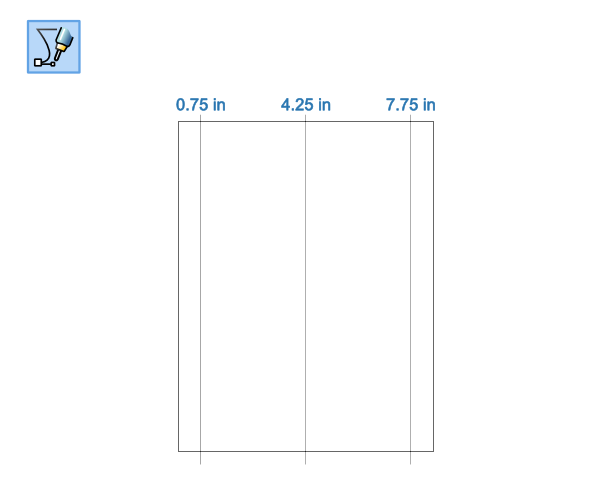
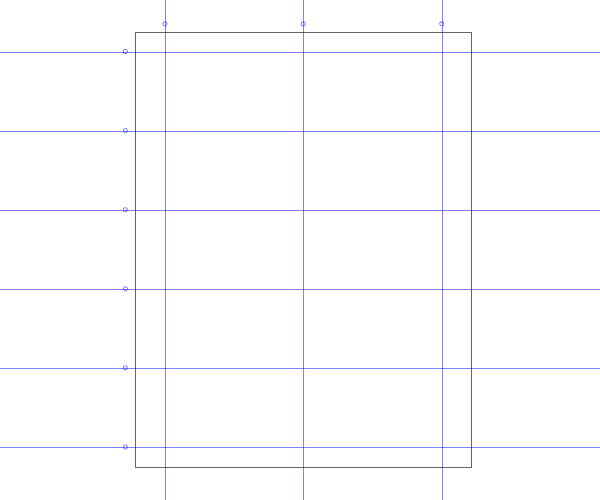
Now grab your Pen tool and draw 3 vertical lines that are taller than the height of the document (hold Control to keep it straight). Change the X coordinates to the amounts I have shown below.
Step 3
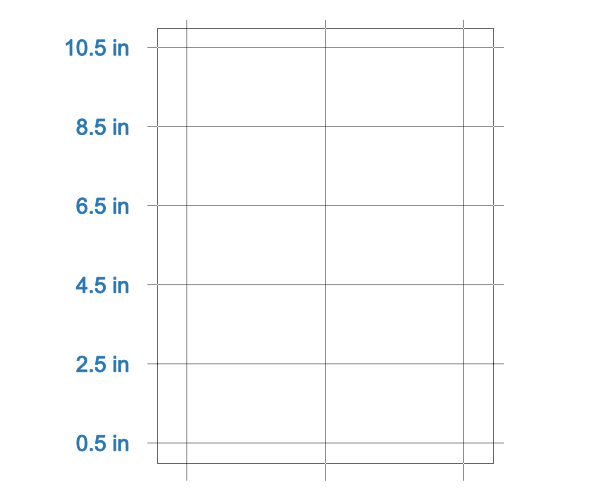
Now draw 5 more horizontal lines with the following Y coordinates.
Step 4
When all of your lines are drawn, you can now select all of them and head up to Object > Objects to Guides. There’s your business card template!
Step 5
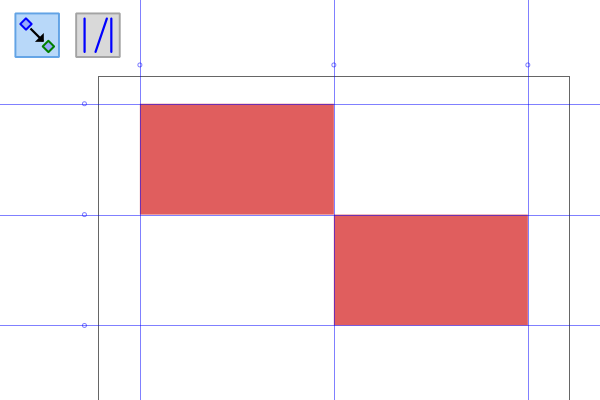
Finally, make sure you Enable snapping along with Snap to Guides to keep everything perfectly aligned. You can see the squares I drew below have perfectly snapped into the 3.5″ x 2″ spaces.
All Done!
See? I told you it was easy. Now you have a perfect business card template designed in Inkscape that’s ready for your design expertise. Thanks for reading!