
Let’s use some of Inkscape’s unique features to create a neat speckled text effect. By combining a ton of dots, some text, and a little clipping, this complex looking effect can be created in minutes.
Step 1
Let’s grab the Ellipse tool and draw a tiny 3px by 3px circle.

Step 2
With the tiny circle still selected, head up to Edit > Clone > Create Tiled Clones. Keep all the settings standard except what I have below.
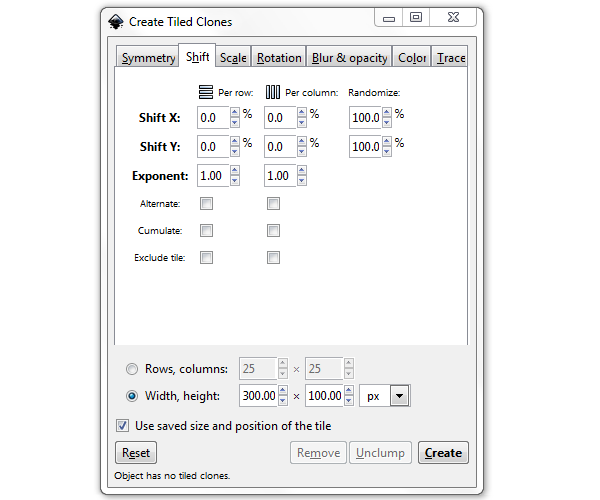
Step 3
You should end up with hundreds of dots like I have below. Go ahead and select them all and Group them.
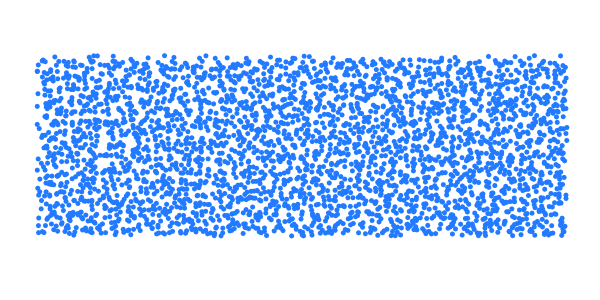
Step 4
Now, go ahead and type some text. Make sure to Path > Object to Path the text afterwards.
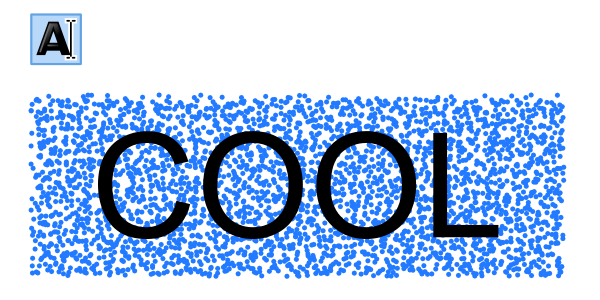
Step 5
Since the letters are grouped, go ahead and double-click on one of them to enter that group. Now you’ll be able to select all of the letters individually (but all at once) and click Path > Outset a couple times to add some meat on these letters.
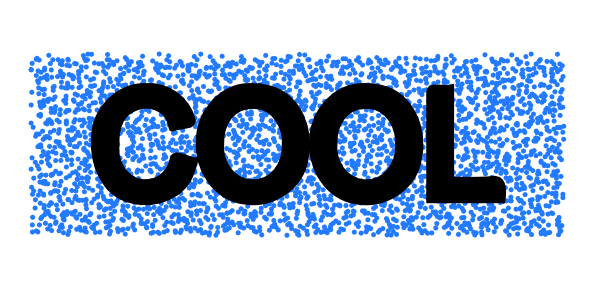
Step 6
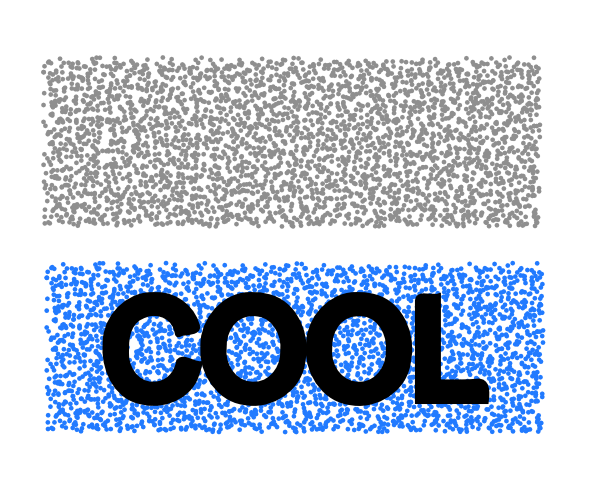
To add some more cool effects, let’s copy and paste our group of dots.
Step 7
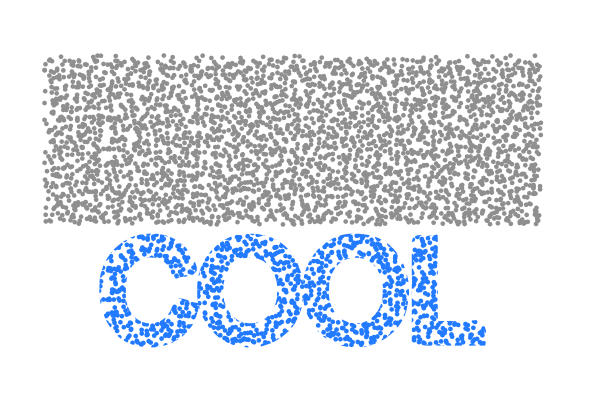
Now it’s time to select the text and the first group of dots and go up to Object > Clip > Set. You’ll now have that speckled text effect. Cool, huh?
Step 8
Finally, position the speckled text over our second group of dots. Use Object > Align and Distribute to make it perfect.
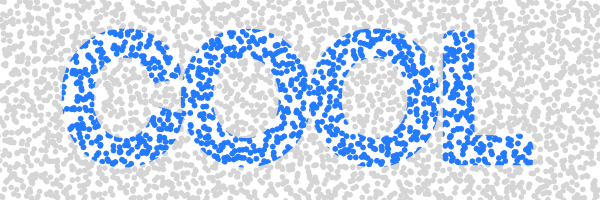
There’s Our Text Effect!
This is an awesome way to create complex effects using Create Tiled Clones, combined with a few other techniques. Whether you like this goofy text effect or not, hopefully you found the method useful. Thanks for reading!